piHPSDR
Connect to the Raspberry Pi using SSH. I am using a fork of piHPSDR by DL1YCF as it is well documented and frequently updated.
Clone the code in the home directory.
git clone https://github.com/dl1ycf/pihpsdr.gitInstall the prerequisite libraries:
cd pihpsdr
git checkout Rel-2.3
./LINUX/libinstall.sh
cp Makefile GNUmakefile
Edit GNUmakefile and change the the line GPIO=ON to GPIO=OFF.
The GPIO is used by radioberry driver and will clash otherwise. If you are running piHPSDR on a Raspberry Pi remote from the Radioberry then the GPIO ports can be used for addition control functions. Make the application with the following commands
make clean
make
sudo cp pihpsdr /usr/local/bin
Double click the new piHPSDR icon on the Pi screen and the application should start
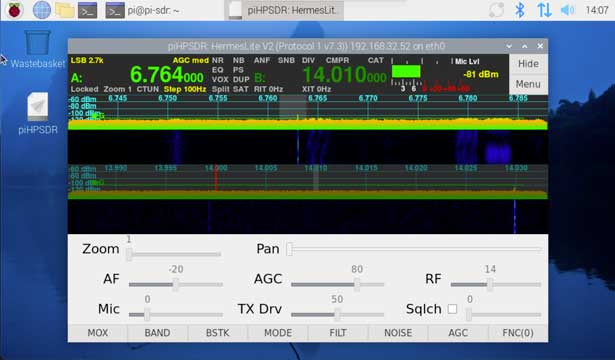 To auto run on boot create a file /home/pi/start_pihpsdr.sh
#!/usr/bin/bash

while ! pgrep -f "radioberry" > /dev/null; do
	sleep 0.1
done
/usr/local/bin/pihpsdr &
These commands look for the radioberry service running before starting pihpsdr.
and make it executable:
chmod +x start_pihpsdr.sh
Then create a directory /home/pi/.config/autostart
mkdir /home/pi/.config/autostart/
and a file /home/pi/.config/autostart/pihpsdr.desktop
#!/usr/bin/env xdg-open

[Desktop Entry]
Type=Application
Name=pihpsdr
Exec=bash /home/pi/start_pihpsdr.sh
Terminal=true
StartupNotify=true
On reboot a radioberry with piHPSDR front-end should now be working.
On the opening dialog box click "Protocols" and ensure that "Protocol 1" and "Auto start if only one device" are ticked.
Untick the other options for a faster start up.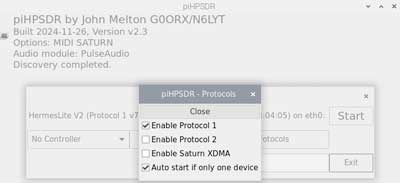
Right click on one of the radio displays to select the audio out: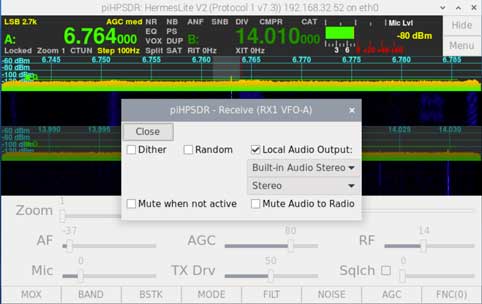
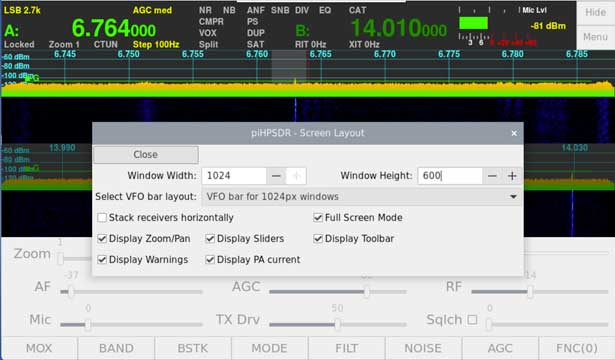
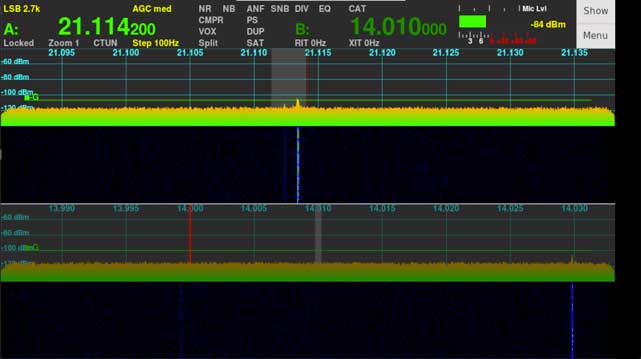
...and select "Menu" > "Screen" to set the required screen resolution: