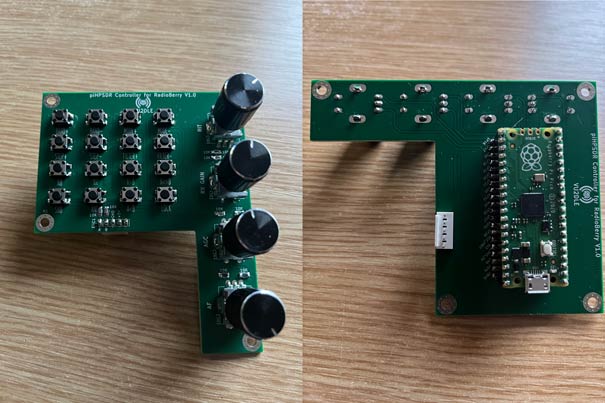
Control Board
I used PCBWAY to produce the board and carefully soldered the components as on the github page.
Flash the firmware to the Pico as described on VU2DLEs github page and the control board is complete.
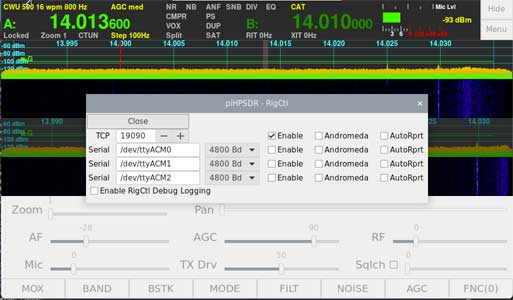
Now to connect it to the Pi. In the piHPSDR menu select "RigCtl" and enable TCP port 19090
Before the application that links the control board to piHPSDR can run we need to install WiringPi. SSH to the Pi and from the home directory use the following commands:
git clone https://github.com/WiringPi/WiringPi.git
cd WiringPi
./build debian
cd debian-template
sudo dpkg -i ./wiringpi_3.10_arm64.deb
I had several issues with compiling the application. The C++ compiler complained about variables being reused in "button.c" This is fixed by globally renaming "buffer" as "n_buff" and changing int "n" to an extern int.
I also didn't like that the controls worked non-intuitively for me, turning the level controls clockwise reduced the levels. Some of the switches didn't work but I think that may be because of the version of piHPSDR that I'm using. The "Band" and "Step" switches were the wrong way round for me, I prefer down on the left and up on the right.
I have made available a pre-compiled version of the modified application here. To install it:
wget https://www.ncanet.co.uk/downloads/rbc_comm.tgz
tar xvzf rbc_comm.tgz
cd Application
sudo mv rbc_comm /usr/local/bin
This also contains the modified source code for anyone wanting a starting point for their own development.
The next challenge was to get the application to run on boot. piHPSDR must be running first and TCP port 19090 must be open or the rbc_comm exits with an "Unable to connect" message
Fist install "netcat"sudo apt install netcat-traditional
Then create a file "start_rbc_comm.sh" with the following:
#!/usr/bin/bash
#
while ! nc -z 0.0.0.0 19090; do
  sleep 0.5 # wait for 1/2 second before check again
done
#
sleep 2.0
#
/usr/local/bin/rbc_comm
and make it executable
chmod +x start_rbc_comm.shThis script will loop and do nothing until it sees port 19090 open, waits for piHPSDR to finish loading and then runs rbc_comm.
Run the script at boot using cron.
sudo crontab -eappend the file with:
@reboot sh /home/pi/start_rbc_comm.sh > /home/pi/rbc_comm.log 2>&1Reboot and all should work.
A ready to run image can be downloaded.
It is for a Raspberry Pi 4 with CL016 Radioberry board and will need a 16GB micro SD
card or larger.
Login: pi
Password: raspberry